
Talk to Gemini. Hear it talk back.
Voice Control for Gemini is a free browser extension for gemini.google.com. Speak your prompts instead of typing, have replies read aloud and teach it the words you use.
Free for desktop Chrome and Edge. From the maker of Voice Control for ChatGPT.
The Voice Control bar sits in Gemini's top bar. While you talk it shows the language, a live sound level and a timer, and your words appear in Gemini's prompt box.
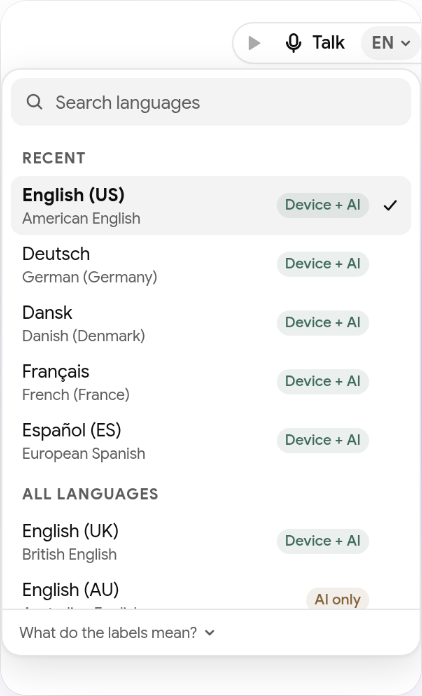
Talk in over 70 languages
Press Talk, or hold Space when you're not in a text field. Your words appear in Gemini's prompt box as you speak. Press Send to send right away, or Done to edit the text first.
Search every speech recognition language. Your recent languages stay at the top, and labels show which ones have a voice on your device.
Hear every reply
- Play any reply with the button next to it.
-
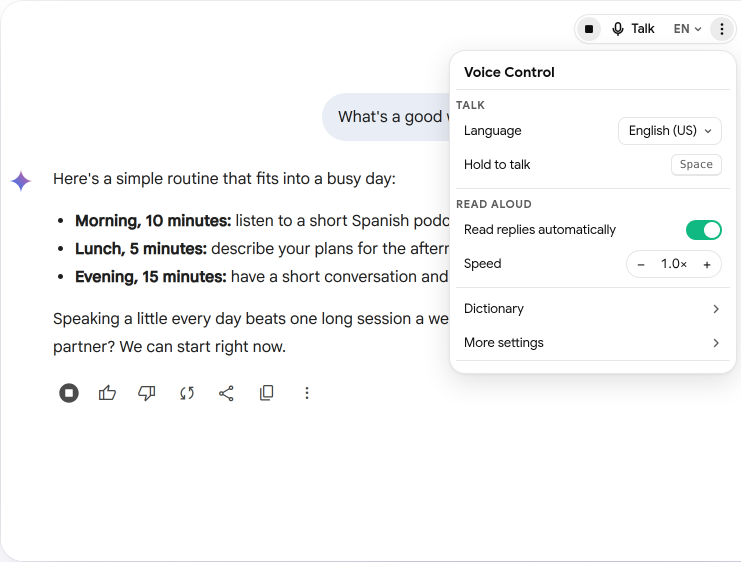
Turn on
Read replies automatically
to hear new replies as they arrive. - Choose a voice on your device or Gemini's own voice, and set the reading speed.
Hands-free mode
Have a back-and-forth conversation without clicking. Turn on Hands-free mode in the Voice Control menu under More settings, then press Talk or Space to start.
When you pause for about two seconds, your message is sent. When Gemini has replied, and read the reply aloud if that's on, Voice Control starts listening again. Press Space or the close button in the bar to stop.
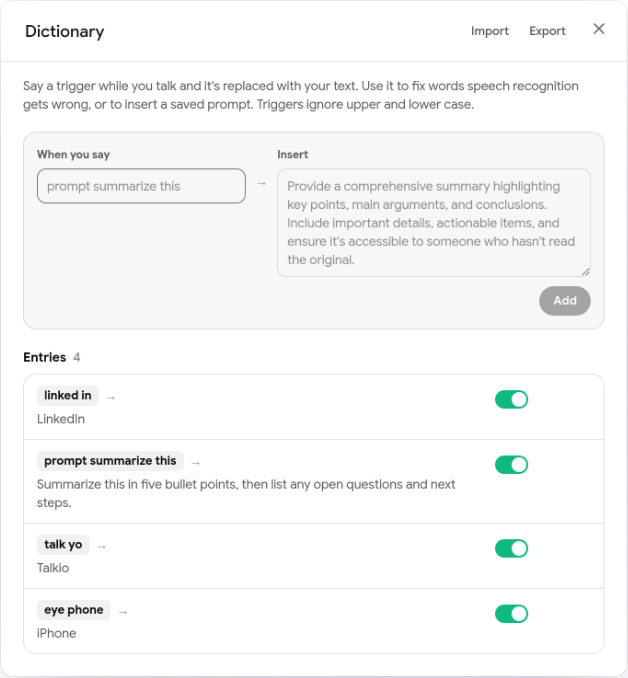
Your own Dictionary
-
Say a short phrase and get a full prompt, like
prompt summarize this
. -
Fix words speech recognition keeps getting wrong, like
eye phone
to iPhone. - Turn entries on or off, and import or export your Dictionary.
Keep your hands on the keyboard
Every voice action has a shortcut while Gemini is open.
- Space
- Hold to talk, release to send. In hands-free mode, press to start or stop.
- Esc
- Stop talking and keep the text without sending
- Enter
- Send the current message
- Ctrl+Shift+S
- Read the latest reply aloud, or stop
- Ctrl+Shift+A
- Turn automatic read aloud on or off
Get started
- Add Voice Control for Gemini to your browser.
- Open gemini.google.com and sign in.
- A short tour shows you the Voice Control bar in the top bar.
- Press Talk, or hold Space, and allow the microphone when your browser asks.
- Speak, then press Send.